What criteria separate a high-performing office workstation from one that hinders daily task execution? The answer rarely lies in a single software. It revolves around three simultaneous axes: the choice of software suite, the regulatory compliance of collaborative tools, and the physical ergonomics of the workstation. This article measures the gap between these axes to identify where real office productivity gains are located.
Managed or free office suite: table of functional gaps
The market contrasts two models. On one side, managed environments (Microsoft 365, Google Workspace) with centralized access management, automatic updates, and contractual compliance. On the other, free or open-source suites installed locally, without centralized administration.
| Criterion | Managed Suite (Microsoft 365, Google Workspace) | Free / Open Source Suite (LibreOffice, OnlyOffice desktop) |
|---|---|---|
| Real-time collaboration | Native co-editing in the browser or app | Limited or absent, requires third-party extensions |
| Access and rights management | Admin console, audit logs, remote revocation | Manual, depends on local file system or network sharing |
| Contractual GDPR compliance | Data processing clauses, encryption, data localization in Europe (optional) | No contractual obligation, responsibility lies with the user |
| Cost per user | Monthly or annual subscription | Free (excluding hosting and internal maintenance costs) |
| Security updates | Automatic, centralized | Manual, depend on the administrator’s responsiveness |
The main gap does not lie in the word processor or spreadsheet, where basic functions are comparable. It appears in access management and change traceability, two points that become critical as multiple people work on the same files.
To delve deeper into the differences between these environments, Geek Newz resources detail the features by usage category.

GDPR compliance and choice of office tools: a constraint that has become a selection filter
Competing content lists tools without addressing the regulatory constraint that conditions their adoption in companies. GDPR requirements (encryption, data localization, access control) narrow the list of solutions that are truly usable in a professional context.
Google Workspace, for example, documents specific compliance requirements for organizations: encryption of data in transit and at rest, audit logs, ability to restrict data localization. Microsoft 365 offers equivalent mechanisms with its data residency options in Europe.
- Unaudited free solutions (note-taking apps without encryption, spreadsheets shared via public links) expose the company to a risk of non-compliance, even for simple tasks like shared project tracking.
- Tenders now include criteria for documented compliance, which automatically eliminates tools without contractual commitment to data protection.
- Open-source suites deployed on internal servers (on-premise) remain a viable option, provided the company takes on maintenance, security updates, and compliance documentation.
This regulatory filter explains the growing preference for managed environments in organizations that handle personal data, even when the budget pushes towards free solutions.
Workstation ergonomics: the forgotten factor of office productivity
Productivity guides focus on software and organizational methods. However, the physical ergonomics of the workstation directly affect the ability to maintain prolonged concentration.
Screen position and lighting
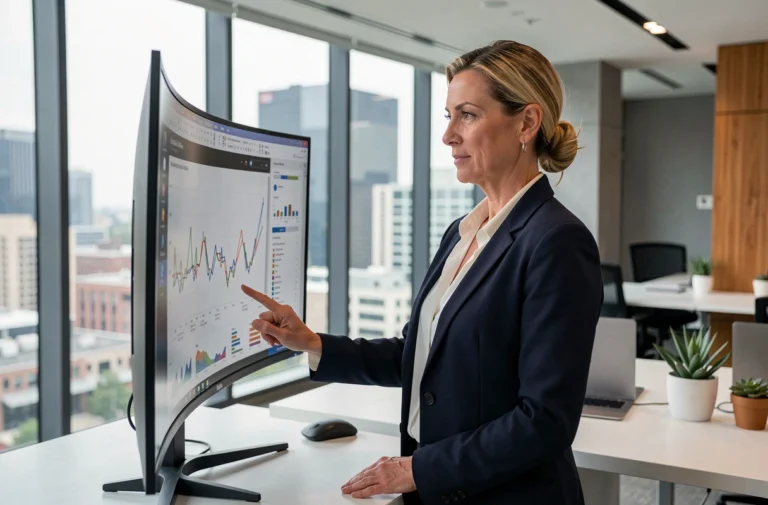
There are specific recommendations: screen positioned at eye level, at a distance of about an outstretched arm. A screen that is too low forces cervical flexion, leading to fatigue within a few hours. Poorly oriented lighting creates glare on the screen, forcing one to strain contrast or squint.
These adjustments cost nothing (a screen stand, repositioning the desk relative to the window) but their absence degrades the quality of work on spreadsheets or long documents much more than the choice between two competing software.
Dual screen and task management
Working on a single screen with an Excel spreadsheet and a Word document open simultaneously requires constant back-and-forth between windows. A second screen, even a modest size, allows displaying the data source on one side and the drafting document on the other. The gain is measured in reduced clicks and context switches, two factors of efficiency loss documented in studies on attention at work.

Keyboard shortcuts and automation in Excel: cumulative micro-gains
The majority of Excel users utilize less than a quarter of the available shortcuts. The unit gains seem small (a few seconds per operation), but over a full workday with repetitive tasks, the cumulative effect is significant.
- Ctrl+Shift+L (toggle automatic filters) avoids navigating the ribbon with each data sort.
- Ctrl+T (convert a range to a structured table) automatically applies formulas to new rows, eliminating manual copy errors.
- Alt+= (auto sum) intelligently selects the range above the active cell, faster than clicking the toolbar icon.
- F4 (repeat last action) works for formatting, inserting rows, or deleting cells, and reduces the number of manipulations for repetitive formatting operations by half.
Beyond shortcuts, conditional formatting and pivot tables transform a static project tracking file into a visual analysis tool. A pivot table allows grouping hundreds of task lines by status, responsible person, or deadline in just a few clicks, without complex formulas.
Office productivity does not unlock with a single lever. Choosing a managed suite compliant with GDPR lays the foundation. The ergonomics of the workstation remove physical barriers. Shortcuts and automation in the spreadsheet compress the execution time of recurring tasks. It is the combination of these three axes that produces a measurable gap, not the isolated adoption of a tool or method.